
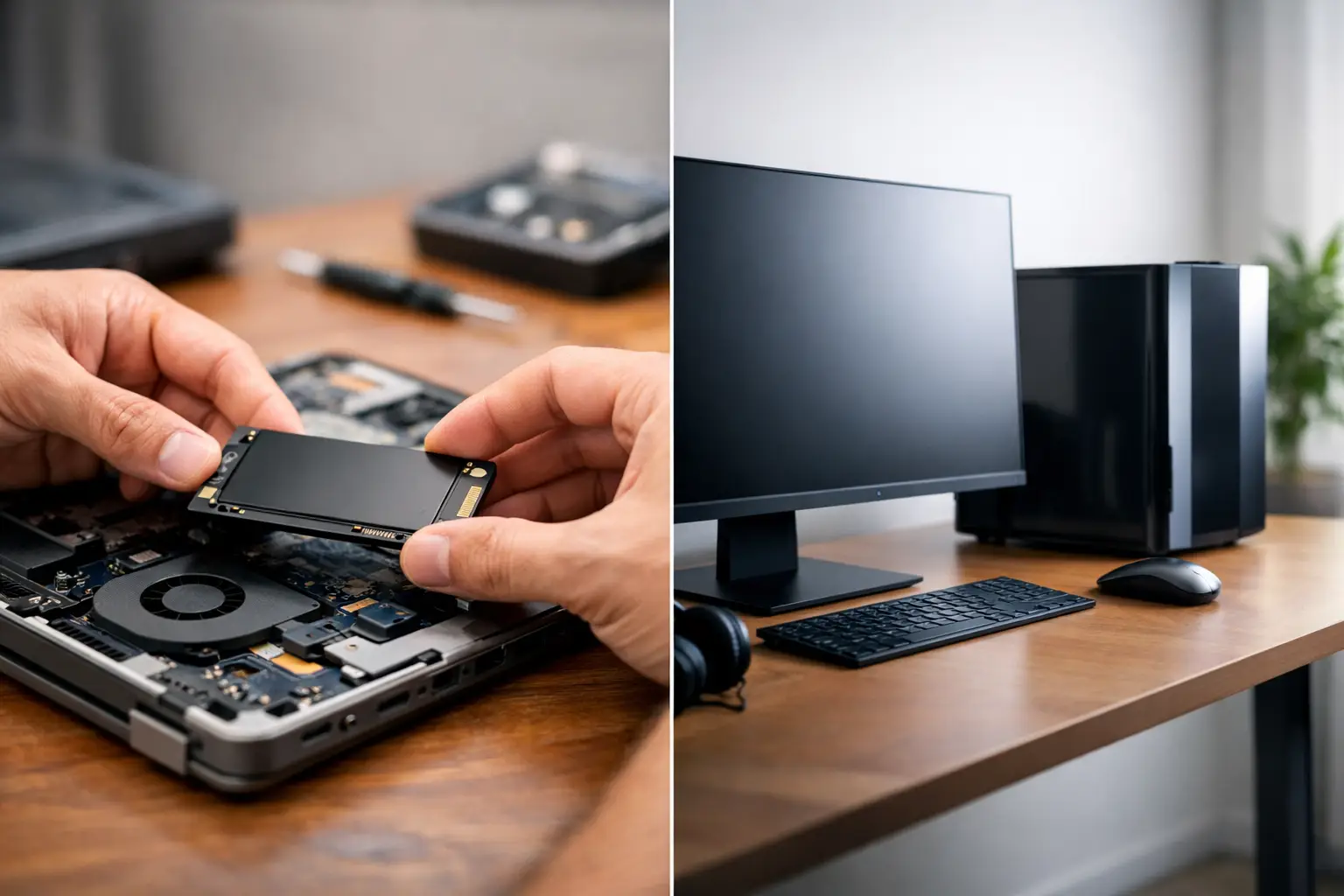
A computer that takes ten minutes to start can make even simple jobs feel frustrating. Before replacing it, consider the real choice: an SSD upgrade vs new computer. For many home users and small businesses, fitting a solid-state drive can make an older machine feel dramatically faster for a fraction of the cost. But it is not the right answer for every computer.
The best decision depends on what is slowing your computer down, how old its other parts are, what you use it for and whether it can run the software you need. A proper assessment can save money, protect your files and avoid replacing a computer that still has plenty of useful life left.
What an SSD upgrade can change
Older computers commonly use a mechanical hard drive. These drives store data on spinning disks, and they become a major bottleneck as Windows, programs and files grow over time. An SSD has no moving parts and can read and write data much faster.
Replacing a hard drive with an SSD can improve startup times, make programs open sooner and reduce the waiting when saving files or switching between tasks. It is often one of the most noticeable upgrades available for a desktop or laptop.
For everyday use, an SSD can make a big difference to web browsing, email, online banking, document work, invoicing and video calls. A home-office computer that once felt unreliable may become perfectly suitable again after a drive upgrade and a general clean-up.
The improvement is not just about speed. SSDs are generally quieter, use less power and are less vulnerable to damage from bumps than mechanical drives. This can be especially useful for a laptop that travels between home, work and appointments.
SSD upgrade vs new computer: start with the problem
A slow computer does not always have a slow drive. If the hard drive is the main issue, an SSD upgrade may be excellent value. If the computer is struggling because it has too little memory, an ageing processor, overheating parts or failing hardware, a new drive alone will not solve everything.
Think about what happens when you use the computer. If it takes ages to turn on and load programs, but works reasonably well once everything is open, the hard drive may be the main culprit. If it freezes during video calls, shows frequent error messages, shuts down unexpectedly or cannot keep up with several open programs, there may be broader issues to investigate.
A technician can check the health of the existing drive, available memory, Windows version, internal temperatures and general condition of the machine. This is more useful than guessing based on its age alone. Some well-maintained computers can benefit from an SSD after six or seven years, while others are ready for replacement much earlier.
When an SSD upgrade is the sensible choice
An SSD upgrade is often worth considering when the computer is otherwise dependable and meets your day-to-day needs. It is particularly suitable for a machine used for general household tasks, schoolwork, administration, accounting, email and web-based business software.
It can also make sense when you need a practical solution now but do not want the cost or disruption of purchasing a new computer. A quality SSD, installed correctly with your files and settings transferred, can extend the useful life of your existing device and give you time to plan a future replacement.
For small businesses, this can be helpful for a secondary office computer, a point-of-sale machine, a reception PC or a staff laptop that does not need high-end performance. The key is to make sure the computer remains compatible with current security updates and the programs your business relies on.
Storage capacity matters too. If the old drive is nearly full, moving to a larger SSD can remove another common cause of poor performance. It also gives you room for photos, documents, email files and business records without constantly managing storage warnings.
When buying a new computer is better value
There comes a point where spending money on an older computer is not the most economical path. If several components need attention, the machine cannot run a supported version of Windows, or its performance remains limited after upgrades, a replacement is usually the better long-term decision.
A new computer is worth considering when the current one has an outdated processor, very limited memory or hardware that cannot be upgraded. It is also the safer choice if the device has repeated faults, a failing screen, damaged hinges, battery problems, random crashes or signs of motherboard trouble.
Windows 11 compatibility deserves particular attention. A computer that cannot run a supported operating system may continue to work for a while, but it can become a security and software compatibility concern. For anyone handling business records, customer details, banking or important personal information, keeping a supported and protected system should be part of the decision.
New computers also suit people whose needs have changed. Editing large photos or videos, running design software, managing multiple business applications, using larger spreadsheets or working with several screens all place greater demands on a system. In these cases, a modern computer with enough memory, a capable processor and an SSD from the start will offer a more comfortable experience.
Do not overlook memory, backups and data transfer
An SSD is fast, but it does not replace the need for enough RAM. Memory affects how well a computer handles multiple programs at once. A computer with 4GB of RAM may still feel cramped even with a new SSD, particularly when using modern browsers, cloud applications and video meeting software.
In some cases, an SSD and memory upgrade together provide excellent value. In others, the total cost begins to approach that of a new or quality refurbished computer. That is why it helps to compare the full job, not just the price of one part.
Your data should also be central to the decision. Whether you upgrade or replace, important documents, photos, emails, passwords and business files need to be backed up before work begins. A drive that is slow can also be a drive that is beginning to fail. Waiting until it stops completely can make recovery harder and more expensive.
A proper upgrade can include cloning the old drive where appropriate, transferring files and settings, reinstalling required software and checking that printers, email and cloud storage are working afterwards. With a new computer, the same care is needed to avoid discovering later that an important file, program licence or saved email account was left behind.
The hidden costs of the cheapest option
The least expensive option on paper is not always the best value. A low-cost SSD upgrade can become frustrating if the computer has other faults, the drive capacity is too small or the installation does not include a reliable data transfer. Likewise, buying a bargain computer without suitable specifications can lead to another replacement sooner than expected.
For a home user, value often means a computer that starts reliably, stores files safely and handles everyday tasks without fuss. For a business, it also means less downtime, fewer interruptions and confidence that staff can access the programs and files they need.
Consider how long you expect to keep the computer. If an SSD upgrade is likely to give you another two or three useful years, it may be money well spent. If you are already facing several limitations and need a computer to last for the next five years, putting that spend towards a tailored new system is often more sensible.
Getting advice that suits your setup
There is no one-size-fits-all answer to an SSD upgrade vs new computer. A laptop used for emails at home has different requirements from a desktop running a small business, and both differ from a family computer storing years of photos.
AllTec Computer Services can assess your current computer on-site, explain the practical options in plain English and help with upgrades, replacements, data transfer and setup. For customers in Caboolture, Morayfield and nearby areas, that means less time unplugging equipment and trying to work out what needs to come to a workshop.
Before spending money, ask for an honest assessment of the computer you already own. The right outcome is the one that gives you dependable performance, protects what matters on the machine and fits the way you actually use it.