
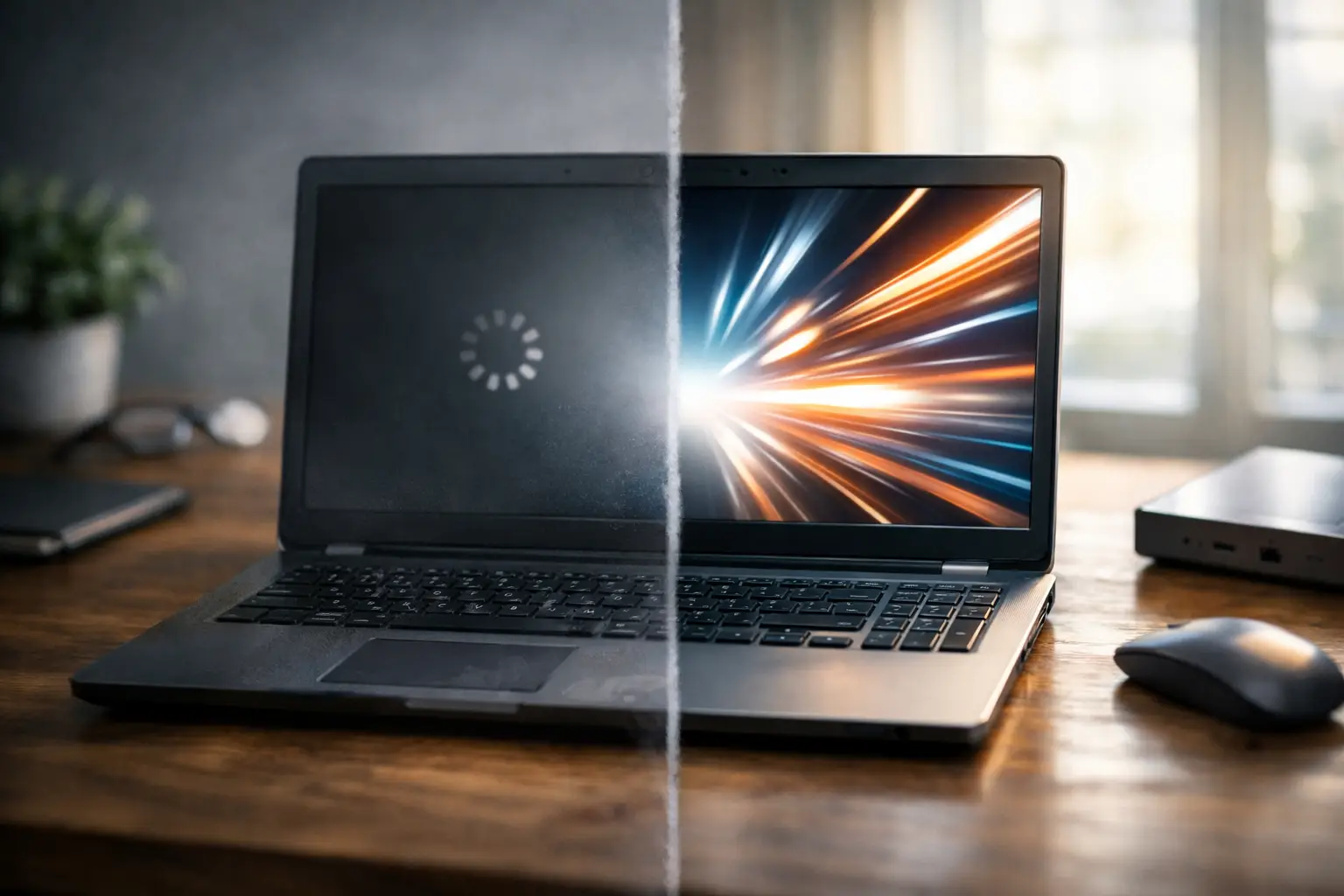
A laptop that takes ten minutes to start, freezes during emails or struggles with a simple video call is more than an annoyance. For many home users and small businesses, it interrupts work, delays jobs and makes everyday tasks feel harder than they should. The good news is that learning how to speed up old laptop performance does not always mean buying a new computer. Often, a few sensible checks and the right upgrade can make a noticeable difference.
The key is to identify what is actually causing the slowdown. An older laptop may be short on storage, overloaded with background programs, affected by unwanted software or simply no longer suited to the work you ask it to do. Starting with the simple fixes can save money, while knowing when to invest in an upgrade prevents throwing good money after bad.
Start by finding the cause of the slowdown
Before deleting files or buying parts, pay attention to when the laptop is slow. Does it take a long time to start up? Is it only slow when several browser tabs are open? Does it freeze during video calls, or run hot and noisy even when you are not doing much?
These clues matter. Slow start-up is often caused by too many programs launching automatically. Sluggish web browsing can point to low memory, too many browser extensions or an ageing hard drive. Constant fan noise may mean the laptop is overheating, while repeated error messages or crashes can suggest a failing drive, malware or a Windows problem.
On a Windows laptop, open Task Manager by pressing Ctrl, Shift and Esc together. The Processes tab shows which programs are using the most processor, memory, disk or network activity. You do not need to understand every item listed. Look for a program that is consistently using a large share of the computer’s resources when you are not actively using it. That is a useful starting point.
How to speed up old laptop start-up and daily use
Reduce programs that start automatically
Many programs add themselves to the start-up list after installation. Cloud storage tools, chat programs, printer utilities and software updaters can all compete for resources as soon as you switch the laptop on.
In Task Manager, choose the Start-up apps section and disable non-essential items. Leave security software and hardware-related services alone if you are unsure. Programs such as Spotify, Teams, Adobe updaters or game launchers usually do not need to open at every start-up and can be launched when required.
This will not make an old processor new again, but it can reduce the frustrating wait between pressing the power button and being ready to work.
Free up storage space
A nearly full drive can make a laptop feel painfully slow. Windows needs working room for updates, temporary files and virtual memory. As a practical rule, try to keep at least 15 to 20 per cent of the drive free.
Start with Settings, then Storage, to see what is taking up space. Temporary files, old downloads and unused applications are often the easiest places to reclaim capacity. Empty the Recycle Bin, remove software you no longer use and move large photos, videos or archived documents to an external drive or properly configured cloud storage.
Be careful with large-scale file deletion if important family photos or business records are involved. A backup should come first. It is very easy to clear space quickly and only later realise a folder was the only copy.
Keep Windows and key software up to date
Windows updates can improve stability, fix security issues and resolve compatibility problems. Browser updates matter too, especially if you rely on online banking, email, cloud accounting or web-based business systems.
Updates are useful, but they are not a cure for hardware that has reached its limit. If updates repeatedly fail, the laptop runs out of disk space or Windows is no longer supported on the device, it is worth getting advice before forcing an upgrade.
Tidy up your browser
For plenty of people, the browser is the laptop. It handles email, internet banking, shopping, streaming, work portals and social media. A browser with dozens of open tabs and unnecessary extensions can use a surprising amount of memory.
Close tabs you no longer need, remove extensions you do not recognise or use, and restart the browser occasionally. If one website is always slow while everything else works normally, the issue may be the site or your internet connection rather than the laptop itself.
Check for unwanted software and security issues
Unexpected pop-ups, changed search pages, browser toolbars you did not install and sudden slowness can all be signs of unwanted software. Run a full scan using reputable, up-to-date security software and make sure Windows security protections are enabled.
Avoid downloading random ‘PC cleaner’ or ‘speed booster’ programs. Many make big promises, add more advertising, or encourage unnecessary paid repairs. Windows has built-in tools for storage cleanup and basic maintenance, which are generally a safer place to begin.
If the laptop contains business information, customer records or saved passwords and you suspect malware, disconnect it from the internet where practical and seek help promptly. Continuing to use an infected device can put accounts and files at risk.
The upgrades that make the biggest difference
For a laptop that is otherwise reliable, two hardware upgrades often deliver the best value: replacing an old mechanical hard drive with a solid-state drive (SSD), and increasing memory (RAM).
Upgrade from a hard drive to an SSD
Older laptops commonly use a traditional spinning hard drive. These drives are slower, more prone to wear and can become a major bottleneck even if the rest of the laptop is still suitable for everyday use.
An SSD has no moving parts and can greatly improve start-up times, program loading and general responsiveness. The difference is often immediately noticeable. However, the job is not simply about fitting a new drive. Your Windows installation, programs and personal files need to be transferred carefully, or Windows needs to be reinstalled and data restored from backup.
An SSD upgrade is usually worthwhile when the laptop has a sound screen, keyboard, battery and processor, and is compatible with current Windows requirements. It may be less sensible if several parts are failing or the laptop is already too old for secure, supported software.
Add more RAM where it is possible
RAM is the laptop’s short-term working space. If it is constantly full, Windows has to rely more heavily on the drive, which slows everything down. This is especially common when running many browser tabs, video meetings, Microsoft Office applications or accounting software at the same time.
Moving from 4 GB to 8 GB can make a worthwhile difference for basic use on a compatible laptop. Some laptops can be upgraded further, while others have memory soldered in and cannot be changed. A quick compatibility check is essential before purchasing parts.
Do not ignore heat, power and physical condition
Heat is a quiet performance killer. Dust can build up in cooling vents, fans and heat sinks, particularly in homes with pets, workshops or dusty rural conditions. When a laptop overheats, it may deliberately slow itself down to avoid damage.
Use the laptop on a firm, flat surface rather than a bed, couch or blanket that blocks the vents. Check that the charger is working properly and that the battery is not swollen, loose or draining unusually fast. A failing battery or charger can cause performance issues and is not something to ignore.
Cleaning inside a laptop can help, but modern models are often delicate and difficult to open without the right tools. If you are not comfortable working around batteries and small connectors, a professional clean and inspection is the safer option.
When speeding up an old laptop is not worth it
There is a point where repair and upgrade costs are better put towards a replacement. This is often the case when a laptop cannot run a supported version of Windows, has a very old processor, suffers repeated hardware faults, has a cracked screen, or needs a new battery, drive and memory all at once.
For small business owners, reliability is part of the calculation. A cheaper repair may not be good value if the laptop still struggles with video meetings, cloud software or the applications needed to serve customers. Likewise, a home user may be better off with a dependable refurbished or new laptop than continuing to deal with daily crashes and lost time.
Before replacing a device, make sure your files, email settings, passwords, software licences and printer details are safely transferred. A new computer is only helpful once it is set up properly for the way you work.
For residents and businesses around Caboolture, Morayfield and nearby areas, AllTec Computer Services can assess whether an upgrade is practical, carry out data transfers and help set up a replacement without the hassle of taking your equipment apart yourself.
A slow laptop deserves a proper diagnosis rather than a guess. Start with storage, start-up programs, updates and security, then weigh up an SSD or memory upgrade against the age and condition of the machine. The right fix should give you dependable day-to-day use, not just a short-lived improvement.