
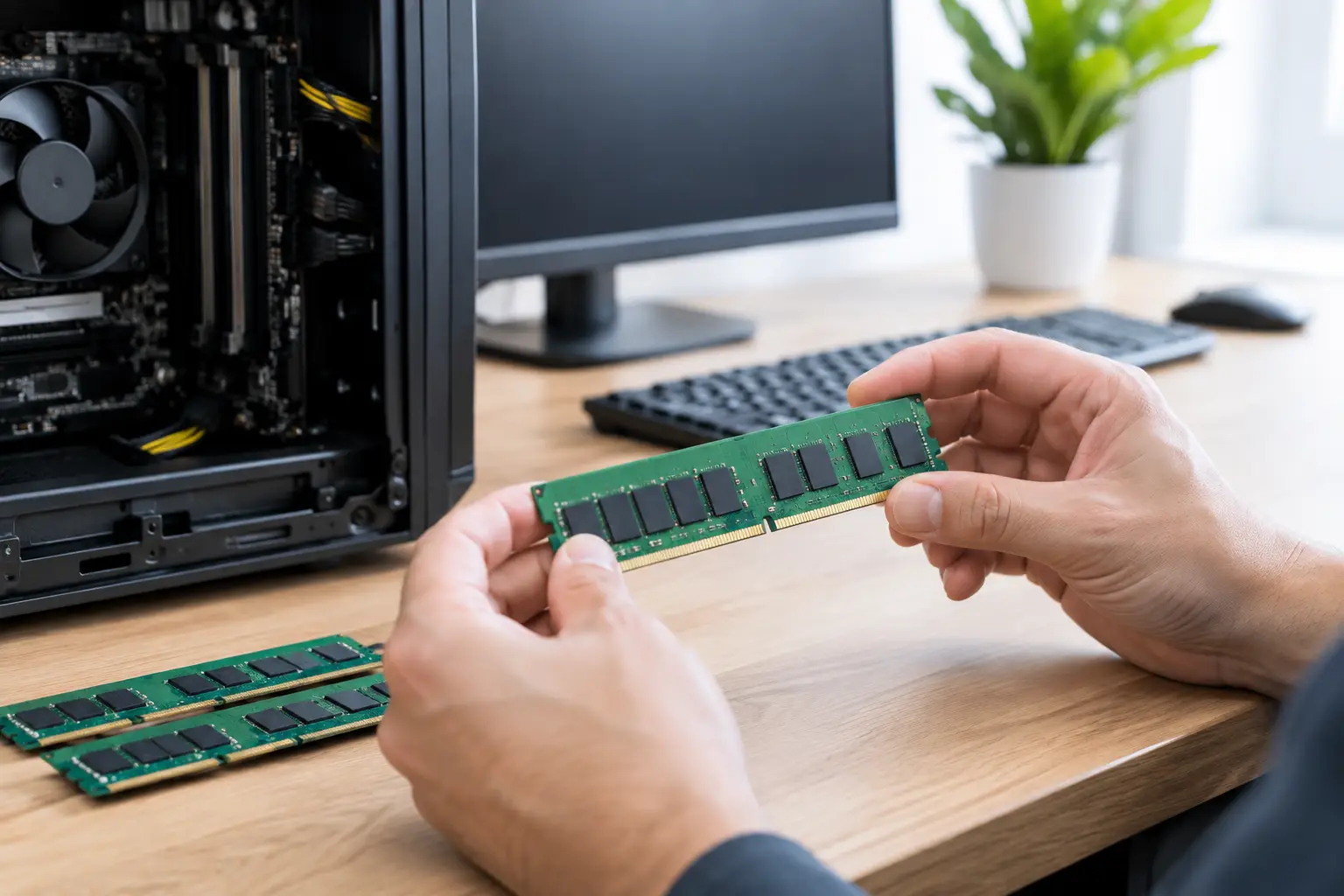
A desktop that takes too long to open a browser, freezes during video calls or struggles when several programs are open may not need replacing. In many cases, choosing to upgrade desktop memory is one of the most cost-effective ways to make an older computer feel more responsive again.
Memory, also called RAM, gives your computer working room for the jobs it is doing right now. When there is not enough available, Windows has to rely more heavily on the storage drive. That process is much slower, and it is often the reason a PC feels sluggish even when the internet connection is fine.
When to upgrade desktop memory
A memory upgrade is worth considering when your computer is generally reliable but slows down during everyday multitasking. You might notice a delay when switching between Outlook, web browsers, accounting software and Word documents, or find that your browser tabs regularly reload themselves. Home users may see the problem when editing photos, attending an online appointment or running a video call while someone else is using a second screen.
For small businesses, insufficient RAM can become a daily frustration. A computer that pauses while opening customer records, printing invoices or moving between cloud applications costs time and interrupts concentration. Adding memory will not solve every performance issue, but it can make a meaningful difference where the computer is regularly running out of working space.
A quick look at Windows Task Manager can provide a useful clue. If the Memory figure is consistently close to 80 or 90 per cent while you are doing normal work, more RAM may help. This is especially relevant if the desktop has a reasonably modern processor and an SSD, but still becomes unresponsive with several applications open.
How much RAM does a desktop need?
The right amount depends on what you ask the computer to do. More is not always better if the system only handles basic tasks, but too little memory can make even a good-quality PC feel tired.
For simple web browsing, email, documents and online banking, 8GB is generally the practical minimum for a Windows 11 desktop. It can be adequate for a lightly used home computer, although it leaves limited room for multitasking.
For most home offices and small business desktops, 16GB is a sensible target. It provides comfortable room for multiple browser tabs, Microsoft 365 applications, cloud storage, video meetings and common business software. It is often the best-value upgrade for people who want their computer to stay useful for several more years.
A desktop used for larger spreadsheets, photo editing, design work, virtual machines, video production or specialised business software may benefit from 32GB or more. These workloads can use memory quickly, and extra capacity helps the computer continue working smoothly while other programs remain open.
The key is to match the upgrade to the way you work. Installing 32GB in a PC used only for email may offer little noticeable benefit. On the other hand, upgrading a busy office computer from 8GB to 16GB can remove a common source of daily delays.
Check compatibility before buying RAM
Desktop memory is not one-size-fits-all. RAM modules look similar at a glance, but they vary by generation, speed, capacity and physical format. A desktop designed for DDR3 memory cannot accept DDR4 or DDR5 memory, for example. Trying to force the wrong module into a slot can damage the memory or the motherboard.
Before purchasing anything, check the computer model, motherboard model and current memory configuration. You also need to know how many RAM slots are fitted, how many are already in use and the maximum memory the system supports. Older desktops may have tighter limits than newer machines.
It is usually best to use matching memory modules where possible. A matched pair, such as two 8GB modules, can allow compatible systems to run in dual-channel mode. In plain terms, this can improve how efficiently the computer accesses memory. Mixing different brands or speeds can work in some cases, but it may reduce performance or create stability problems.
Also consider the existing hardware. If a desktop still uses a mechanical hard drive, upgrading to an SSD may deliver a bigger improvement to start-up and file-opening times than memory alone. If the PC has both low RAM and an older hard drive, the best result may come from addressing both rather than expecting one upgrade to fix everything.
How to upgrade desktop memory safely
Installing RAM is often straightforward, but it is still an internal hardware job. The computer should be fully shut down, unplugged from power and placed on a clean, stable surface. Static electricity can damage components, so avoid working on carpet and touch an earthed metal surface before handling the modules.
After removing the side panel, locate the RAM slots beside the processor. The retaining clips at each end of the slot release the existing module. New memory should line up with the notch in the slot and press down evenly until the clips lock into place. Never force it. If it does not fit easily, check that it is the correct type and facing the right direction.
Once the computer is reassembled, start it and confirm that Windows recognises the new total memory. If it does not boot, beeps repeatedly or shows less RAM than expected, switch it off and check that each module is seated correctly. Some systems can be particular about which slots are used first, particularly when installing two modules.
For people who are not comfortable opening their desktop, professional installation is often the simpler option. It avoids compatibility guesswork and provides an opportunity to check for other issues that may be affecting performance, such as drive health, Windows updates, malware or overheating.
Memory upgrades for older Windows PCs
A RAM upgrade can be a good way to extend the life of an older desktop, but age still matters. If the computer cannot officially run a supported operating system, regularly loses network connection or has failing components, spending heavily on memory may not be the best value.
Windows 11 has higher expectations than older versions of Windows, particularly when several modern applications are open. A compatible PC with 4GB or 8GB of RAM may technically run it, but that does not always make it pleasant to use. Moving to 16GB can improve everyday use, provided the processor and storage drive are still suitable.
For a business computer, it is worth considering the cost of downtime as well as the price of parts. An upgrade makes sense when it improves a reliable machine without disrupting essential software, printers or files. If the desktop is becoming difficult to support or unreliable during working hours, replacement may be the safer long-term choice.
Get advice that suits your computer
The best memory upgrade is not necessarily the largest or most expensive option. It is the one that suits your desktop, your workload and your budget. A quick assessment can identify whether RAM is the real bottleneck or whether an SSD upgrade, software clean-up or replacement computer would provide better value.
For homes and small businesses across Caboolture, Morayfield, Woodford, Wamuran and the wider Moreton Bay area, AllTec Computer Services can assess desktop performance and provide practical on-site advice. You do not have to disconnect everything and take the PC to a shop just to find out what it needs.
A computer should support your day rather than hold it up. If yours is spending more time thinking than working, a properly matched memory upgrade may be the straightforward fix that gets it back on track.