
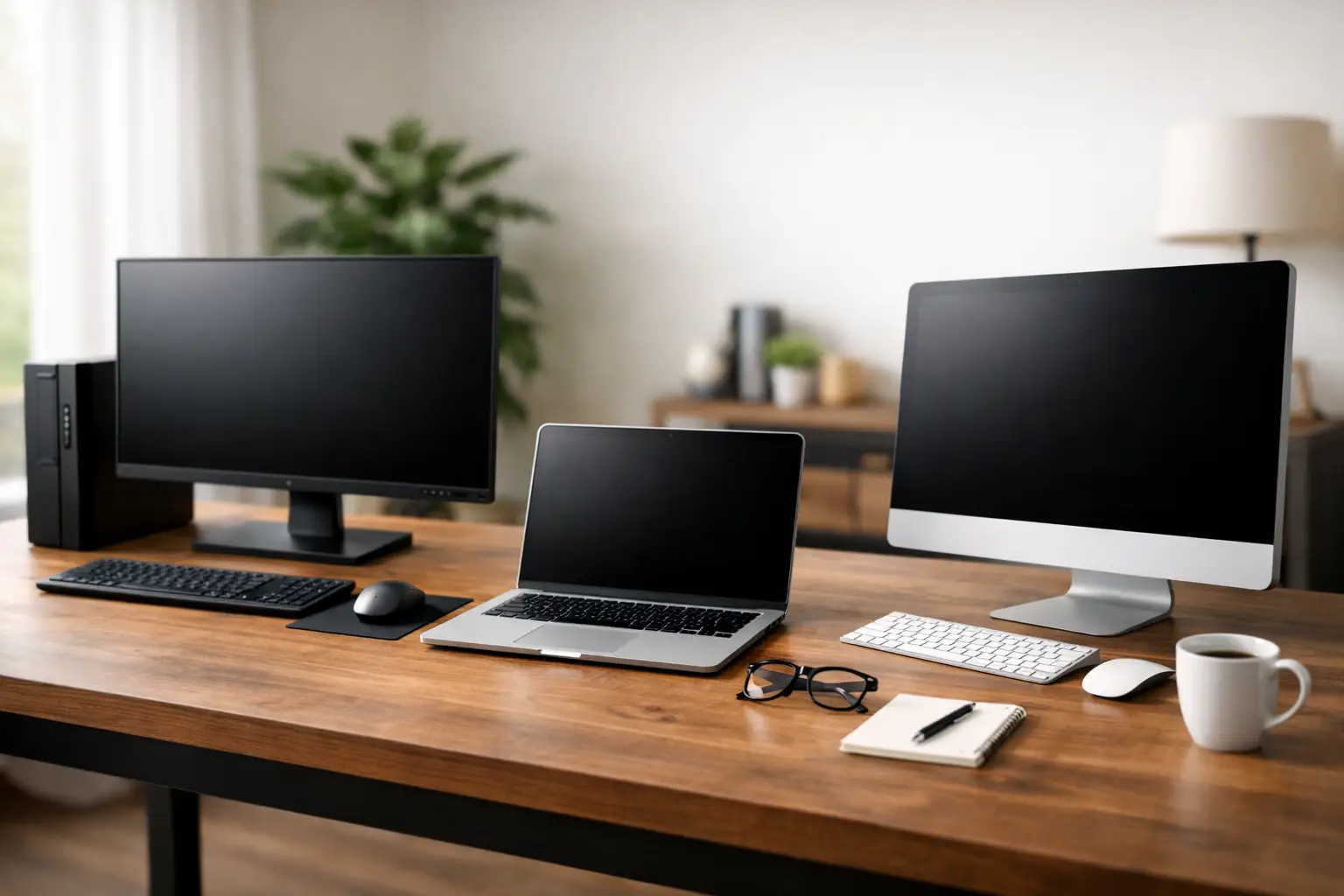
A computer that takes five minutes to start, drops out during video calls or struggles with everyday bookkeeping is not saving money. The best computer for home office use is one that suits the work you actually do, has enough room to grow, and can be set up properly from day one.
For many people, the right choice is not the most expensive computer on the shelf. A reliable desktop or laptop with sensible specifications, a comfortable screen and secure backups will make a much bigger difference to the working day than flashy extras you will never use.
Start with the work, not the brand
Before comparing models, think about what happens on your computer during a normal week. A sole trader sending emails, preparing quotes and using Xero has very different needs from someone editing photos, running large spreadsheets or joining online meetings all day.
Basic administration, web browsing, email, invoices and document work do not require a high-end machine. A modern entry-level business computer can handle these tasks well, provided it has enough memory and a solid-state drive. On the other hand, if you regularly work with construction plans, design software, video files, databases or multiple large spreadsheets, buying too little computer can quickly become frustrating.
It also helps to consider how long you expect to keep it. A computer that is only just adequate when new may feel slow within a couple of years. Choosing slightly more memory and storage than you need today is often a sensible investment, particularly for a home-based business where downtime costs time and money.
Best computer for home office: desktop or laptop?
A desktop computer remains an excellent choice for a permanent home office. It usually gives you better value for money, a larger screen, more ports and easier upgrades than a similarly priced laptop. A desktop is also simpler to repair or improve later with extra memory, storage or a second monitor. If your desk is where you do almost all your work, this is often the practical option.
A laptop makes sense when you split time between home, client visits and other locations. It keeps your files and programmes with you, and a good laptop can work comfortably at a desk when connected to a larger monitor, keyboard and mouse. The trade-off is that laptops are generally harder to upgrade and can be more expensive for the same level of performance.
There is also a middle ground. Many home-office users choose a laptop as their main computer, then set it up with a dock or simple cable connection at their desk. At home, it behaves like a desktop with a full-size screen and keyboard. When it is time to leave, they take one device rather than trying to keep files in sync across two computers.
The specifications that matter most
Technical terms can make computer shopping harder than it needs to be. For most Windows home-office computers, four areas deserve attention: processor, memory, storage and screen.
The processor is the computer’s main worker. For everyday office tasks, a current Intel Core i5 or AMD Ryzen 5 processor is a sensible starting point and offers good long-term value. An Intel Core i3 or AMD Ryzen 3 may be suitable for light use, but it can be limiting if your workload grows. For demanding creative, technical or multitasking work, an Intel Core i7 or AMD Ryzen 7 may be worthwhile.
Memory, also called RAM, affects how well the computer handles several programmes at once. While 8GB can manage simple email and web browsing, 16GB is the more comfortable choice for most home-office setups. It helps when you have accounting software, web browsers with many tabs, email, video calls and documents open together. People using design, editing or specialist business software may benefit from 32GB.
Storage is where your files, programmes and Windows are kept. Choose an SSD rather than an older mechanical hard drive for the main drive. An SSD makes a noticeable difference to starting the computer, opening programmes and saving files. A 512GB SSD is a useful baseline for many users. If you keep lots of photos, videos or large project files, consider 1TB or combine the computer’s storage with a properly organised external drive or cloud storage.
The screen is often overlooked, despite being what you look at all day. A 24-inch monitor suits many desks and is a clear step up from a laptop screen. A 27-inch screen gives more room for spreadsheets and side-by-side documents. If you work with two programmes open constantly, such as email and accounts, two monitors can be more useful than spending extra on a faster processor.
Do not forget the parts around the computer
The computer itself is only one part of a productive setup. An uncomfortable chair, poor lighting or a tiny monitor can make a capable machine feel like hard work. Position your screen roughly at eye level, use a proper keyboard and mouse, and make sure there is enough desk space to work without hunching over a laptop.
Reliable Wi-Fi matters too. A computer cannot perform well in the cloud if the internet connection keeps dropping out at the far end of the house. In larger homes, sheds or converted garages, the issue may be Wi-Fi coverage rather than the computer. A wired connection, mesh Wi-Fi system or access point can provide a more dependable result where work is done.
For video meetings, a decent webcam and headset are worth considering. Built-in laptop cameras are acceptable for occasional calls, but an external webcam and headset can improve picture and sound quality for regular client meetings. Clear audio is particularly useful when children, pets, traffic or household activity are nearby.
New, refurbished or custom-built?
A new computer offers the latest hardware, a full manufacturer warranty and the longest likely useful life. It is a good fit when you want a straightforward purchase and expect to rely on the computer for several years.
A quality refurbished business desktop or laptop can be excellent value for lighter office work. Business-grade machines are often built more solidly than budget consumer models, and a properly prepared refurbished computer with an SSD and enough memory can handle emails, documents, invoicing and web tasks very well. The key is knowing its age, condition, warranty and whether it supports Windows 11.
A custom-built desktop is worth considering when your needs are specific. It lets you put the budget into the components that matter rather than paying for features you will not use. This can be especially helpful for home businesses needing extra storage, several displays, specialist software or a computer that can be upgraded over time.
The cheapest option is not always the best value. Be cautious with very low-priced computers that have limited memory, small storage drives or outdated processors. The cost of replacing or upgrading them sooner can outweigh the initial saving.
Plan for security and continuity
Your home office holds more than documents. It may contain customer details, invoices, passwords, tax records and years of work. That makes backups and security part of choosing the right computer, not an afterthought.
Use reputable security software, keep Windows and programmes updated, and turn on multi-factor authentication for email, banking, accounting and cloud services. Avoid sharing a single Windows login with the whole household if business files are stored on the computer. Separate user accounts are a simple way to reduce accidental changes and keep work more organised.
A backup should protect you from more than a failed computer. Cloud storage can protect files from local hardware problems, while an external backup drive gives you another copy under your control. The best approach depends on the size and sensitivity of your files, but the essential point is simple: important work should exist in more than one place.
Set it up once, set it up properly
A new computer can still cause headaches if files, email, printers and software are moved across in a rush. Before replacing an older machine, check which programmes you use, where passwords are stored, what files need transferring and whether your printer or scanner has current Windows 11 support.
A proper setup includes installing updates, activating security, connecting printers, configuring email, transferring data carefully and checking that backups are working. It is also a good time to remove old accounts, tidy up folders and make sure you can access key services without relying on a forgotten password.
For home-office users in Caboolture, Morayfield and nearby areas, AllTec Computer Services can help match a desktop, laptop or custom-built option to your work, then set it up at your premises. The aim is not to sell more computer than you need. It is to give you a dependable workspace that is ready when the working day starts.
Choose the computer around your real workload, allow room for tomorrow, and give equal attention to the screen, network and backup behind it. That is how a home office becomes a place where work gets done rather than another problem waiting to be fixed.