
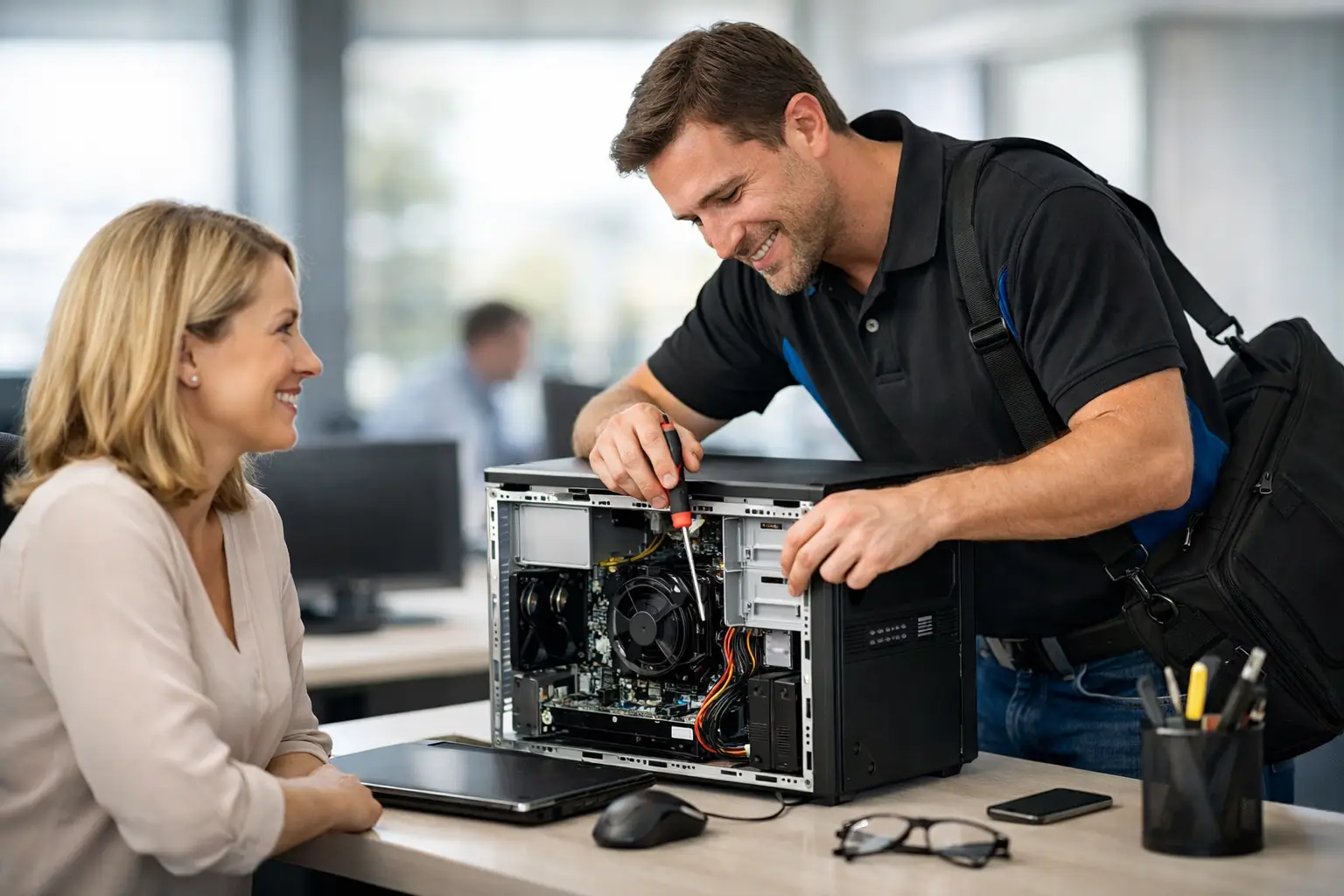
A computer problem is rarely convenient. It might be a desktop that will not start before you need to send an invoice, a laptop that has become painfully slow, or Wi-Fi that drops out whenever the family is online. An on site computer repair service brings practical help to your door, so you do not need to unplug everything, carry equipment to a shop, or try to explain a problem without showing what is happening.
For homes, home offices and small businesses, having a technician visit can save time and prevent small issues becoming bigger disruptions. It also means the repair can be considered in the place where the computer is actually used – alongside the modem, printer, software, cables and other devices that may be part of the problem.
What an on site computer repair service can do
On-site support covers far more than a computer that has stopped working. A technician can diagnose whether an issue is caused by hardware, software, internet equipment, settings or a combination of several things. That distinction matters. Replacing a computer will not fix a poor Wi-Fi setup, and installing more software will not solve a failing hard drive.
Common visits include computers that run slowly, refuse to start, freeze regularly or show unusual error messages. Malware removal, Windows issues, email setup, printer faults and software installation are also regular reasons to call for help. For many customers, the biggest benefit is receiving an explanation in plain English rather than being handed back a device with no idea what changed.
An on-site visit is especially useful for jobs involving more than one device. A new computer may need files transferred from the old one, email accounts connected, printers added, cloud storage configured and security software checked. Getting those details right from the beginning makes the changeover much less stressful.
Home technology problems are often connected
At home, a computer issue can affect far more than one screen. Photos may be stored across an old desktop and a portable drive. A printer may work from one laptop but not another. The modem may be in a poor location, leaving bedrooms or a home office with weak coverage.
A visiting technician can see the full setup and work through the issue where it occurs. This is helpful when improving Wi-Fi coverage, connecting smart devices, setting up backups or helping someone move to a new computer without losing familiar files and settings. It is a more personal approach for people who prefer to ask questions as the work is completed.
Small businesses need continuity, not guesswork
For a small business, computer downtime can mean delayed bookings, missed emails, inaccessible customer files or a point-of-sale system that cannot be used. The fastest sensible fix is not always the most obvious one. A technician needs to understand what equipment is essential, where important information is stored and what needs to keep running while repairs are made.
On-site assistance can help with workstation repairs, shared printers, user accounts, network connections, data access and software problems. It is also valuable for preventive work, such as checking backups, replacing ageing hardware before it fails and improving security settings. A planned upgrade is generally less disruptive than an emergency replacement after a computer fails altogether.
When an on-site visit is the better choice
Remote support is often a quick and cost-effective option for software faults, account settings and straightforward guidance. If the computer turns on, has a stable internet connection and the issue can be safely viewed remotely, there may be no need for a call-out.
However, some problems are difficult or impossible to assess from a distance. An on-site visit is usually the better choice when a device will not power on, a network has multiple connection issues, a printer needs physical inspection, new equipment must be installed, or data needs transferring between devices. It is also preferable when you are not comfortable giving remote access or cannot stay connected long enough for remote troubleshooting.
There is a trade-off. Remote support may resolve a simple problem sooner, while a visit provides hands-on diagnosis and is better suited to jobs involving hardware or several connected devices. An honest technician should recommend the method that fits the problem, rather than treating every issue the same way.
What to expect from a good technician visit
A useful repair visit starts with listening. Before changing settings or replacing parts, the technician should ask what has been happening, when the problem began and what you need the computer to do. This helps avoid unnecessary work and keeps the repair focused on the outcome that matters to you.
Diagnosis should come before major decisions. For example, a slow computer could need a software clean-up, more memory, a solid-state drive, a Windows upgrade or replacement hardware. The right option depends on the computer’s age, its condition and how you use it. Spending money on upgrades for a device near the end of its useful life may not offer good value.
Clear communication is just as important. You should understand the likely cause, the available options, expected costs and any risks before work goes ahead. If data is at risk, a technician should explain the importance of a backup and discuss the safest path before attempting repairs.
Once the work is finished, take a few minutes to test what matters most. Open your usual email, print a document, connect to Wi-Fi and check that important files are available. This is the right time to ask how to manage updates, where backups are stored and what warning signs to watch for in future.
Preparing for a computer repair visit
You do not need technical knowledge to prepare, but a little information can make the appointment more efficient. Write down error messages, note when the issue occurs and keep any passwords you may need available. If you have a laptop, make sure its charger is nearby. For desktop computers, leave access around the unit, modem and printer if possible.
If the issue involves files, identify the folders or programs you use most. Let the technician know if there are important photos, business documents, accounting records or emails that must be protected. Do not share passwords unless they are necessary for the task, and change them afterwards if you would feel more comfortable.
It is also worth mentioning recent changes. A new modem, software update, power outage, dropped laptop or suspicious email can provide valuable clues. Even a detail that seems minor may shorten the diagnosis time.
Repairs, upgrades or replacement?
Not every computer fault calls for a new device. A well-chosen upgrade can give an older computer several more useful years. Replacing a traditional hard drive with a solid-state drive, increasing memory or removing unnecessary software can make a noticeable difference for everyday web browsing, email and office work.
On the other hand, replacement can be the smarter long-term decision when a computer is unreliable, cannot run supported software or needs repeated repairs. This is particularly relevant for devices that cannot move to Windows 11, or for business computers handling important records and customer communications.
The best answer depends on cost, reliability and your needs. A basic home computer does not need the same specifications as a business workstation running specialised programs. Local advice is valuable when it is based on how you actually use technology, not simply on the most expensive option available.
Local support that works around your setup
For customers in Caboolture, Morayfield, Wamuran, Woodford, Elimbah and Kilcoy, mobile support removes the inconvenience of transporting a computer and hoping the problem can be reproduced in a workshop. It is particularly helpful for rural properties, home offices and small businesses with equipment that is not easy to move.
AllTec Computer Services has provided practical local technology help since 2008, with on-site and remote options for repairs, upgrades, new computers, networking and everyday setup assistance. The aim is simple: provide a solution that makes technology easier to use and easier to rely on.
When your computer starts causing trouble, do not feel you need to guess at the fix or put up with the frustration. A timely check at your home or workplace can protect your data, reduce downtime and give you clear advice for the next step.