
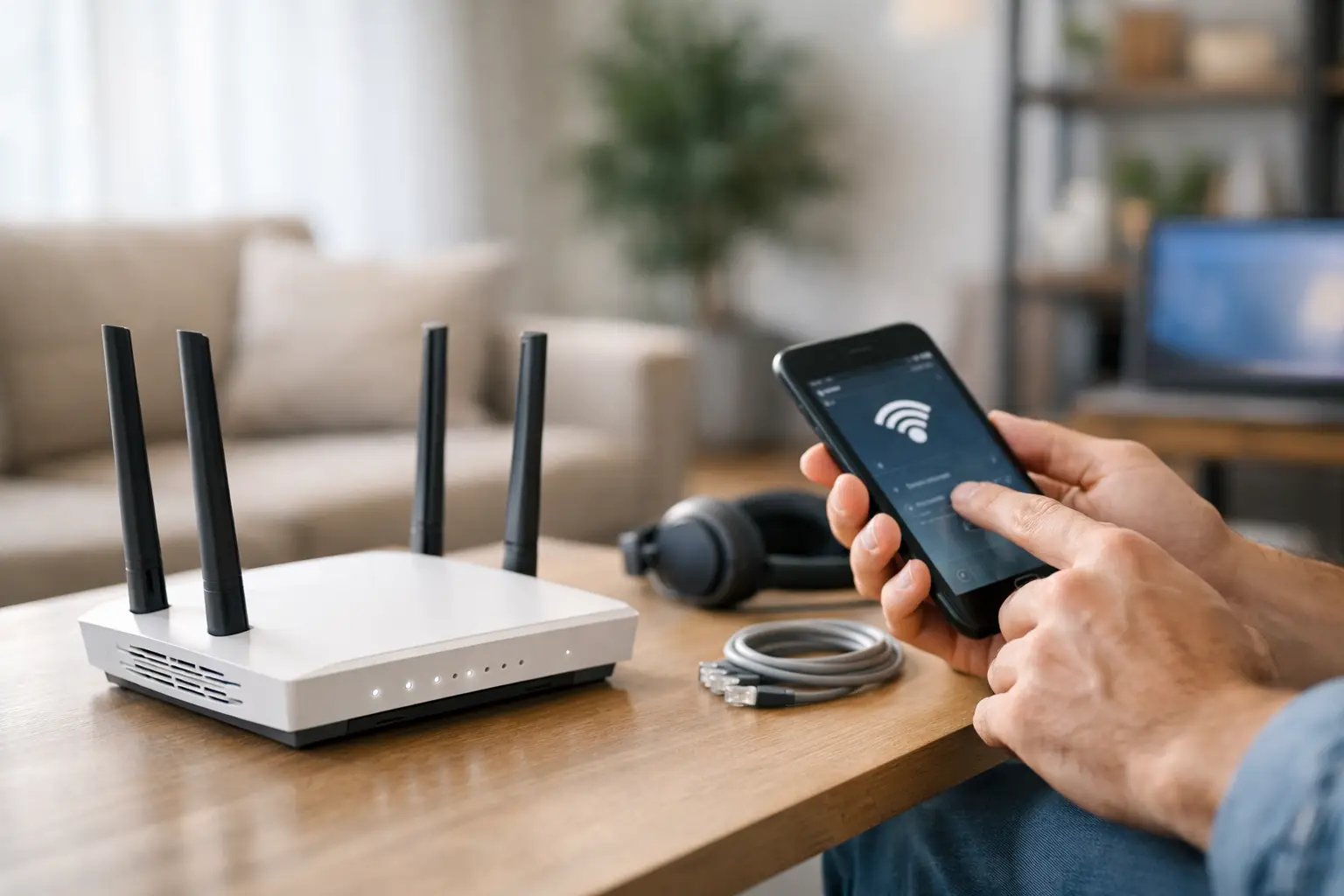
A fast internet plan will not help much if the router is tucked in a cupboard, the Wi-Fi password is still the factory default, or the signal drops out at the back of the house. Knowing how to set up home wifi properly makes everyday jobs easier, from streaming a movie in the lounge room to joining a work call from a home office.
The good news is that most home Wi-Fi problems can be avoided with a sensible setup from the start. You do not need to be a technology expert, but you do need the right equipment, a good location and a few security settings in place.
Start with the right internet equipment
Your internet connection comes into the home through an NBN connection box, modem, router, or a combination unit. These names are often used interchangeably, but they do different jobs. The modem connects your home to the internet service, while the router shares that connection with your computers, phones, smart TVs, printers and other devices.
Some internet providers supply a modem-router unit that handles both jobs. This is often enough for a small flat or modest home, especially when it is positioned well. Larger homes, double-storey homes and properties with thick brick walls may need a better router or a mesh Wi-Fi system to get dependable coverage.
Before buying anything new, check what you already have and how old it is. A router that is several years old may still work, but it can struggle with many connected devices and may not support newer Wi-Fi standards. If you use video calls, online backups, security cameras or multiple streaming services, investing in suitable equipment can make a noticeable difference.
How to set up home wifi step by step
Begin by connecting the router to your NBN box or internet connection point with an Ethernet cable. Plug in the power, switch it on and give it a few minutes to start. The indicator lights should show that the device has power and an internet connection, although the exact symbols and colours vary between brands.
Most providers include a quick-start guide with the required settings. In many cases, the router detects the connection automatically. If it does not, you may need to enter details supplied by your provider using the router setup page or its mobile app.
Once the internet connection is active, use a laptop or mobile to join the temporary Wi-Fi network shown on the label underneath the router. Open the setup page, then create a new network name and password. Choose a network name you will recognise easily, without including your surname, street number or other personal details.
A strong password matters. Use a combination of several unrelated words, numbers and symbols rather than a short, obvious password. It is also wise to change the router administrator password, which is separate from the Wi-Fi password. This helps prevent someone with access to your network from changing its settings.
Put the router where the signal can travel
Router placement is one of the most overlooked parts of a home Wi-Fi setup. Wi-Fi signals spread outward from the router, so the best location is usually as central as practical, raised off the floor and out in the open. A bookshelf, desk or hallway bench is generally better than a low cabinet in one corner of the house.
Avoid placing it behind a television, inside a metal cabinet, near a microwave, or beside large appliances. Brick, concrete, mirrors and water tanks can also weaken the signal. On acreage or in larger Queensland homes, a router positioned at one end of the building is unlikely to cover every room well, no matter how fast the internet plan is.
If the NBN connection point is in an awkward location, an Ethernet cable can sometimes be run to a more suitable room. This is often a better option than trying to force a weak signal through several walls.
Choose between a single router and mesh Wi-Fi
A single quality router suits many smaller homes. It is the simplest option, with fewer devices to manage and less cost upfront. For a larger home, a long layout, a two-storey property or a detached home office, mesh Wi-Fi is often the more practical choice.
A mesh system uses a main router plus one or more satellite units placed around the home. Together, they create one Wi-Fi network rather than separate networks for different areas. Your phone or laptop can move between areas without needing to reconnect manually.
Mesh is not automatically the answer to every coverage issue. Each satellite still needs a reasonably good connection to the main unit. If possible, linking mesh units with Ethernet cables gives the best performance. Where cabling is not practical, careful placement is crucial. Put the satellite halfway between the main router and the room with poor coverage, not inside the dead spot itself.
Wi-Fi extenders can be cheaper, but they may reduce speed and create separate network names. They can help in a small problem area, though they are usually less convenient than a well-planned mesh system.
Connect devices in a sensible order
After your Wi-Fi network is named and secured, connect the devices you use most: computers, mobiles, tablets and the smart TV. Test each one in the room where it will normally be used. This quickly shows whether the issue is with a particular device or with coverage in that part of the home.
For devices that do not move, such as desktop computers, gaming consoles, printers and some smart TVs, an Ethernet cable is worth considering. A wired connection is generally faster and more stable than Wi-Fi, particularly for video calls, large downloads and online gaming. It also leaves more wireless capacity for the devices that genuinely need it.
When adding a wireless printer, make sure it joins the same Wi-Fi network as your computer. Guest networks are useful for visitors, but printers and other shared devices may not be visible from them.
Keep your home Wi-Fi secure
Home Wi-Fi is not a set-and-forget job. Keep the router software, often called firmware, up to date. Updates can improve reliability and address security issues. Many newer routers can install updates automatically, but it is worth checking the setting during setup.
Use WPA2 or WPA3 security if your router offers it. Avoid older security options, and turn off remote administration unless you have a specific reason to use it. WPS, the push-button connection feature, is convenient but can be disabled once everything is connected.
A guest network is a simple way to give visitors internet access without giving them access to your main devices. It can also be useful for smart home products that do not need to communicate with your computers.
Fix the common problems before replacing equipment
If the connection is slow everywhere, test it with one computer plugged directly into the router using Ethernet. If it is still slow, the issue may be your internet service, NBN connection or plan rather than Wi-Fi. Restarting the NBN box and router can clear a temporary fault, but repeated drop-outs should be investigated.
If the connection is good near the router but poor in bedrooms or a home office, focus on placement and coverage. Try moving the router first, then consider mesh Wi-Fi or a wired access point. If only one device has trouble, restart it, forget the Wi-Fi network and reconnect using the new password.
For homes using fixed wireless or mobile broadband, speed can also change with weather, local network demand and signal strength. In those cases, improving the indoor Wi-Fi will help coverage inside the home, but it will not fix a weak incoming service.
A reliable network should feel ordinary: devices connect when they need to, video calls stay clear and you are not resetting equipment every other day. If your setup is more frustrating than helpful, a local technician can assess the equipment and coverage in person. AllTec Computer Services can help households across Caboolture, Morayfield and nearby areas set up Wi-Fi that suits the way they actually use their home.