
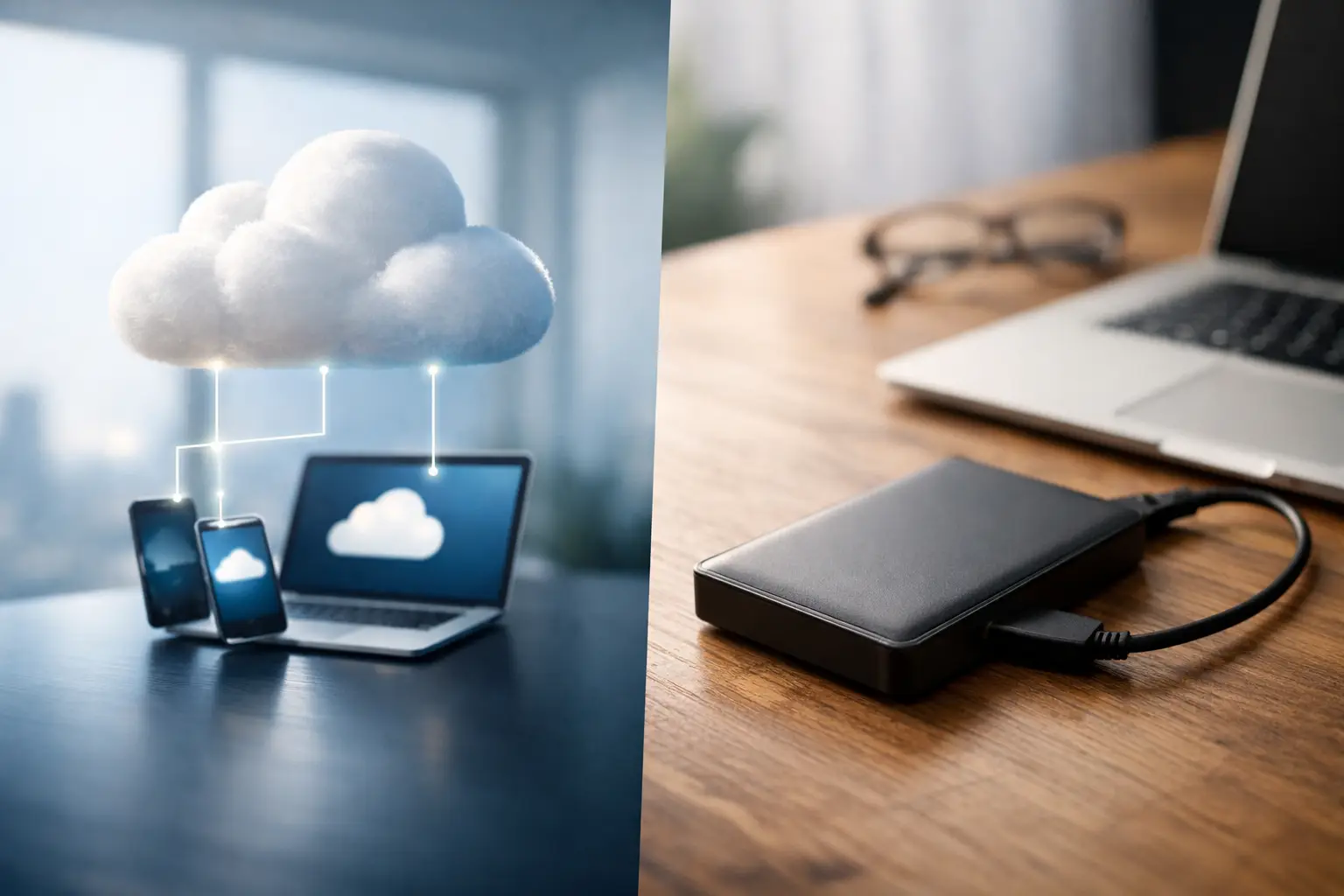
A failed laptop is frustrating. Losing years of family photos, customer invoices or the files needed to run Monday morning is far worse. When weighing up cloud backup vs external drive, the best answer is usually not choosing one over the other. It is choosing a backup setup that protects your files from the problems most likely to affect you.
For a home computer, that might be an ageing hard drive, a spilled coffee or a lost laptop. For a small business, it could be ransomware, accidental deletion, theft or a hardware failure during a busy week. Cloud storage and external drives both have a place, but they solve different parts of the problem.
Cloud backup vs external drive at a glance
An external drive is a physical device that connects to your computer, usually by USB. It can hold a full copy of your files, and it is quick to use when you need to restore a large amount of data. You buy it once, keep it nearby and remain in control of where it is stored.
Cloud backup sends encrypted copies of selected files, or sometimes your whole computer, to secure off-site servers through your internet connection. Once configured, it can run automatically in the background. This protects your data even if your computer and the drive sitting beside it are both damaged, stolen or affected by a fire.
The key difference is location. An external drive is usually close at hand. A cloud backup is stored elsewhere. That distinction matters more than most people realise.
When an external drive is the better choice
External drives are practical, affordable and fast. If a computer is running slowly or needs replacing, a local copy can make transferring photos, documents and saved emails much quicker than downloading everything over the internet.
They are particularly useful for people with a large photo collection, video files, design work or business records. Regional internet connections can vary, and uploading several terabytes to the cloud may take days or even weeks. Restoring the same amount of data after a major computer failure can also be slow if your download speed or monthly data allowance is limited.
An external drive also has no ongoing subscription cost. For households that only need to back up a modest amount of data, this can be a sensible starting point. It is easy to store in a drawer or take to another location when needed.
The drawback is that a drive is only useful if it is connected, working and up to date. Many people copy files onto a drive once, then assume the job is done. Six months later, the important documents are newer than the backup. Drives can also fail without warning, be misplaced, or be damaged in the same incident as the computer.
If the drive stays plugged in all the time, it may be vulnerable to ransomware as well. Some malicious software can encrypt files on connected drives, leaving both the original and the backup unusable. For this reason, a portable drive should be disconnected after a manual backup unless it is part of a well-managed backup system.
When cloud backup earns its keep
Cloud backup is built for consistency and off-site protection. Once it is set up correctly, it can back up changes automatically. You do not need to remember to plug in a drive every Friday afternoon or before heading away for the weekend.
That automation is its biggest strength. Files created today are far more likely to be protected than files waiting for someone to remember a manual backup. Many cloud backup services also keep earlier versions of files. If you accidentally overwrite a spreadsheet or delete a folder, you may be able to recover an earlier copy instead of starting again.
For small businesses, off-site backup is often essential. A break-in, electrical event, flood or fire can take out a computer, networking equipment and any external drive stored in the same office. With a current cloud backup, your replacement computer can be restored from a different location.
Cloud backup does have trade-offs. It normally involves a monthly or annual fee, and it depends on a stable internet connection. The first backup can take a while, especially for large collections of photos or business data. You also need to check what is included. Some services back up only folders you choose, while others can create a full system backup.
Cloud storage is not always cloud backup
This catches out plenty of people. Services that synchronise files between a computer, mobile and tablet are useful, but sync is not necessarily backup.
With synchronisation, a deletion or damaged file may be copied across every connected device. Some platforms keep version history or a recycle bin for a limited time, which helps, but this should not be assumed to be complete protection. Proper backup software is designed around recovery, retention and restoring data after something goes wrong.
Before relying on any cloud service, check whether it backs up your files, synchronises them, or does both. Also check how long deleted files and old versions are retained. For business records, that timeframe can make a real difference.
The safest option: use both
For most homes and small businesses, the sensible approach is a combination of cloud backup and an external drive. This follows a simple backup principle: keep more than one copy of important data, using different types of storage, with at least one copy stored off-site.
Your external drive provides a fast local recovery option. Your cloud backup protects against a wider disaster affecting your home or office. If one method fails, the other gives you another path back to your files.
You do not need to back up every temporary download or software installation file. Start with what would hurt to lose: photos, documents, financial records, email archives, customer information, work files, saved passwords and any specialist software data. Business owners should also include accounting data, job-management files and point-of-sale records where applicable.
Choosing a setup that suits your situation
A retiree with family photos and personal documents may be well served by an automatic cloud backup for key folders plus a portable drive updated every few months. A home-office worker may need daily backups and file versioning. A trades business or local shop may require a more structured plan, including backups for several computers and a clear process for restoring critical records quickly.
Consider these four questions before you decide:
- How much data do you have, and how quickly would you need it back?
- Would losing your computer and external drive at the same time cause a serious problem?
- Is your internet connection suitable for regular uploads and a possible large restore?
- Who will check that the backups are actually working?
The last question is often overlooked. A backup that has never been tested is only a hopeful assumption. Open a few files from the external drive. Confirm that your cloud service is backing up recent changes. If possible, test restoring a folder to a different location so you know what the process looks like before an emergency.
A few practical backup habits
Keep the external drive somewhere safe and dry, away from the computer when it is not in use. Label it clearly, particularly if your household has several devices. If it contains sensitive information, use encryption or password protection, and keep the password stored securely.
For cloud backup, use a strong, unique password and turn on multi-factor authentication. This adds a second check when someone tries to access your account. It is a small extra step that can prevent a compromised email password from becoming a data-loss event.
Small businesses should document who has access to backup accounts and where recovery details are held. Avoid leaving this information with just one staff member. A simple written procedure can save a great deal of time when a computer fails or an employee is away.
Get the backup right before you need it
There is no single winner in cloud backup vs external drive. An external drive is quick, tangible and cost-effective. Cloud backup is automatic, off-site and better prepared for major incidents. Together, they give your important data a much better chance of surviving the everyday mishaps and larger problems that can stop work or erase precious memories.
If you are unsure what needs backing up, how much storage you need or whether your current copies can actually be restored, AllTec Computer Services can help set up a practical solution at your home or workplace. A little planning now means that a failed computer stays an inconvenience, not a disaster.