
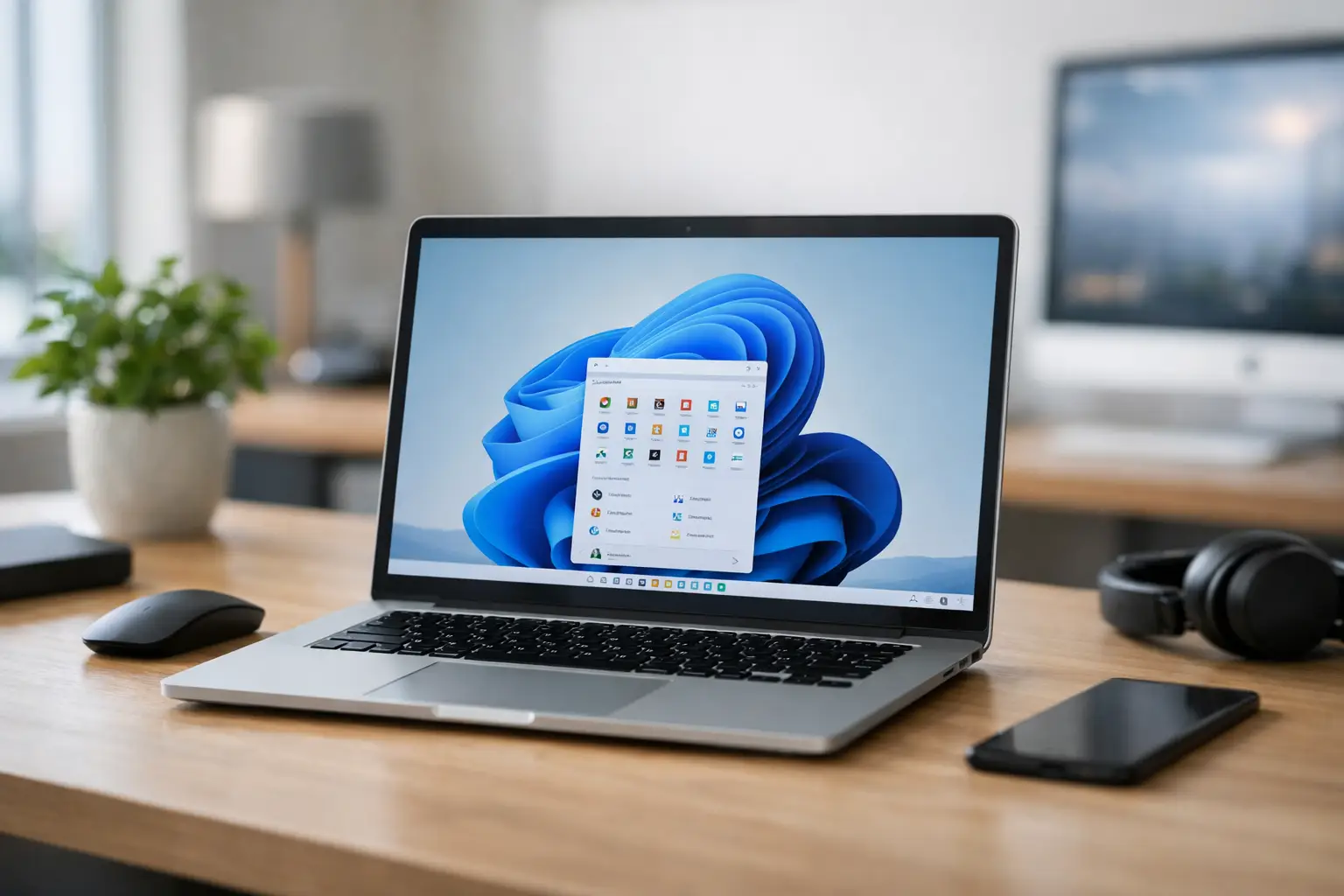
A computer can feel perfectly fine right up until a software update, security warning or new program reminds you it is getting older. So, is Windows 11 worth installing? For many home users and small businesses, the answer is yes – but only after checking that the computer is compatible and that the upgrade suits the way it is used.
Windows 10 reached end of support in October 2025. That means computers still running it no longer receive the usual free security updates from Microsoft. While an older PC may continue to turn on and do everyday jobs, using unsupported software for banking, email, business records or online accounts carries more risk over time.
Windows 11 is not simply a fresh coat of paint. It is Microsoft’s current supported system, with stronger security requirements and ongoing updates. However, an upgrade is not always the best answer. Sometimes a careful setup is all that is needed; other times, a new or refurbished computer will provide better value and fewer frustrations.
What changes when you install Windows 11?
The first change most people notice is the appearance. The Start menu and taskbar look different, windows are easier to arrange side by side, and settings are organised in a more modern way. There is a short adjustment period, particularly for people who have used Windows 10 for years, but the everyday basics remain familiar.
For home-office users, the Snap Layout feature is genuinely useful. It lets you organise a web browser, email program, spreadsheet and document without continually dragging windows around the screen. Video calls, cloud storage and Microsoft 365 also work well within the newer system.
The bigger change is behind the scenes. Windows 11 places greater emphasis on security through features such as TPM 2.0, Secure Boot and newer processor requirements. These checks can seem inconvenient when a computer is older, but they are designed to make it harder for malware and unauthorised software to interfere with the system.
That matters for anyone storing customer information, family photos, invoices, passwords or financial records. Good security still requires sensible habits, including strong passwords, backups and caution with suspicious emails, but a supported operating system is an essential starting point.
Is Windows 11 worth installing for your situation?
If you have a compatible computer that is running reliably, Windows 11 is usually worth installing. You will receive current security updates, better support for newer programs and devices, and a system that is set up for the years ahead. The upgrade can also be a good opportunity to remove old software, tidy files and make sure important data is backed up.
It makes particular sense if you use your computer for online banking, work from home, run a small business, access cloud files or rely on email every day. Continuing to use Windows 10 after support has ended can leave you exposed, especially if the PC connects regularly to the internet.
There are situations where it is worth pausing before upgrading. A computer with limited memory, a slow mechanical hard drive or an ageing processor may technically run Windows 11 but still feel sluggish. In that case, installing Windows 11 may solve the support issue without solving the performance issue.
Older specialist software can also be a factor. Small businesses may use accounting packages, point-of-sale equipment, printers, scanners or industry software that needs checking before an upgrade. Most modern programs work well with Windows 11, but it is better to confirm this first than discover a problem during a busy week.
Check compatibility before making changes
A Windows 11 upgrade is not something to start without a quick health check. The main requirements include a supported processor, TPM 2.0, Secure Boot capability, enough storage space and suitable memory. Many PCs made in the last several years meet these requirements, although there are exceptions.
Compatibility is about more than whether the installer will run. Your printer, scanner, Wi-Fi adapter, external hard drive and business programs should also be considered. A good upgrade checks that the full setup will work afterwards, not just that Windows starts successfully.
Before any major change, back up your files. Photos, documents, email archives, browser bookmarks and accounting data are often spread across different folders and programs. A backup should be checked, not merely started. If a computer has a hard drive that is already showing signs of failure, copying data safely should come before attempting an operating system upgrade.
For households with several computers, it is also worth checking each one separately. One desktop may be an easy upgrade, while an older laptop may be better replaced. Treating every device the same can lead to unnecessary spending or poor performance.
Upgrade, improve or replace?
The right choice often comes down to the condition of the hardware. A reasonably recent computer with an SSD and enough memory can feel noticeably better after a clean, well-managed Windows 11 installation. Removing unnecessary startup programs and checking for driver updates can make a real difference too.
If your PC takes several minutes to start, freezes during basic tasks or has a very old hard drive, an SSD and memory upgrade may be worthwhile. This can extend the life of a compatible machine at a lower cost than buying new hardware.
However, there is a point where investing in an old computer stops making sense. If the processor is unsupported, the battery is failing, the screen is damaged or several parts need attention, a replacement can be the more dependable option. New and refurbished computers can both be sensible choices, provided they are matched to what you actually need.
A family computer used for email, browsing and schoolwork does not need the same specification as a business PC running multiple screens, accounting software and cloud backups. Paying for features you will never use is no better than choosing a machine that struggles from day one.
A clean upgrade avoids common headaches
Windows 11 installations often go smoothly, but problems usually arise from preparation rather than the upgrade itself. Full storage drives, outdated drivers, forgotten passwords and unbacked-up files are common causes of stress.
It is also easy to lose time trying to fix a computer remotely from the kitchen table. For customers around Caboolture, Morayfield and nearby areas, an on-site assessment can be especially helpful when the PC, printer, modem and Wi-Fi all need to work together. A technician can check the equipment in the environment where it is actually used, transfer data carefully and make sure email, printers and everyday programs are ready afterwards.
AllTec Computer Services can assist with Windows 11 upgrades, computer health checks, data transfers and replacement advice, whether you need help at home or in a small office. The goal should be a computer that is secure, practical and easy to use, not an upgrade that creates another job list.
When waiting may be reasonable
There are a few cases where waiting briefly is sensible. If you depend on older business equipment and are arranging compatible replacements, plan the move carefully rather than rushing it. If your files are disorganised or your backup has not been checked for years, use the time to get them in order.
Waiting indefinitely is different. With Windows 10 now out of standard support, putting off the decision for too long can increase security and reliability risks. Even if you choose not to install Windows 11 on your current PC, it is wise to make a plan for a supported device and protect your important data now.
The best decision is not always the newest option. It is the one that gives you a reliable computer, keeps your information protected and lets you get on with your day without technology getting in the way.