
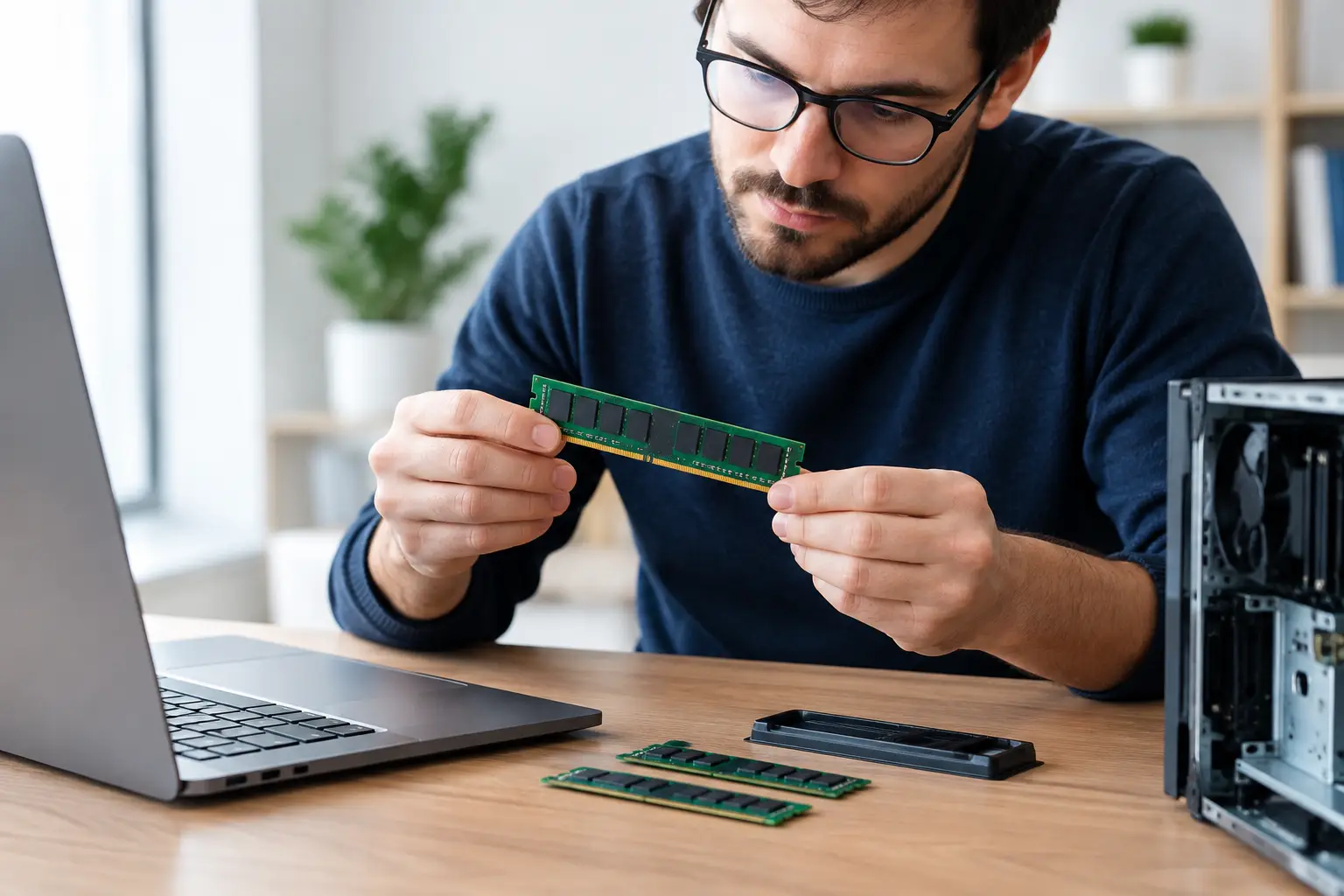
A computer that takes too long to open emails, freezes during video calls or slows down when several programs are running can be frustrating. In many cases, choosing computer memory upgrades can make a noticeable difference without the cost of replacing the whole machine. The right upgrade can help a home PC feel more responsive, or keep a small business computer working reliably through a busy day.
Memory is only one part of a computer, though. Adding more of it is not always the answer, particularly if the hard drive is failing, the computer is very old or software problems are causing the slowdown. A little checking before you buy can save money and prevent incompatible parts from ending up in the drawer.
What computer memory does
Computer memory, usually called RAM, is the short-term working space your computer uses while it is switched on. When you have a web browser open, are writing a document, checking email and joining an online meeting, RAM helps the computer keep those tasks available at once.
If there is not enough RAM, Windows has to rely more heavily on storage space to keep things moving. That is much slower, especially on a computer with an older mechanical hard drive. The result can be long loading times, slow switching between programs and the familiar pause while the computer catches up.
More RAM does not increase internet speed or fix every fault. It can, however, make everyday use much smoother when the current amount of memory is regularly being stretched. For home users, that may mean fewer freezes while managing photos and family paperwork. For a business, it can mean less time waiting for accounting software, browsers and office programs to respond.
Choosing computer memory upgrades starts with compatibility
The most common mistake is buying memory that will not fit or work in the computer. RAM is not one-size-fits-all. Desktop computers and laptops generally use different physical modules, and different generations of memory cannot be mixed just because they look similar.
Your computer may use DDR3, DDR4 or DDR5 memory. These are different standards, with different slots and electrical requirements. A DDR4 stick cannot be installed in a DDR3 or DDR5 slot. Laptops often use smaller SODIMM modules, while most desktop computers use larger DIMM modules.
The computer’s motherboard also has a maximum supported memory capacity. An older system may only support 8GB or 16GB in total, while newer machines can support far more. It may also have only two slots, with both already occupied. In that case, an upgrade may require replacing the existing memory rather than simply adding another stick.
It is also wise to check the speed and configuration of the existing RAM. Memory will usually run at the speed supported by the motherboard and processor, so paying extra for a very fast module may not provide a real benefit. Mixing different capacities or speeds can work in some computers, but matching modules is generally the safer choice for dependable performance.
How much RAM do you really need?
The best capacity depends on what you do with the computer, not simply the biggest number on the packet. For basic browsing, email, online banking, word processing and video streaming, 8GB is often workable on a well-maintained Windows 11 computer. It may feel limited when many browser tabs and programs are open at the same time.
For most households, home offices and everyday business use, 16GB is a practical sweet spot. It provides more breathing room for Microsoft 365, web-based systems, video meetings, cloud storage, multiple browser tabs and routine multitasking. It is often a worthwhile upgrade for a computer that is otherwise in good condition.
Users working with large photo collections, video editing, design software, virtual machines or more demanding business applications may benefit from 32GB or more. That said, higher capacity is not automatically better value. If you mainly use email and internet banking, spending extra on 32GB is unlikely to change your experience as much as upgrading from a hard drive to a solid-state drive.
A useful question is what happens just before the computer slows down. If it struggles only when several programs are open, memory may be the limiting factor. If it is slow from the moment it starts, takes ages to open any program or makes clicking and whirring noises, the storage drive or another issue may need attention first.
Check whether another upgrade will matter more
Many older computers still use a mechanical hard drive. Replacing it with a solid-state drive, or SSD, is often one of the most noticeable upgrades available. Windows starts faster, programs open sooner and general use feels less sluggish. For some computers, an SSD and sensible amount of RAM provides a far better result than memory alone.
The processor also matters. A computer with an ageing entry-level processor can still struggle even after a RAM upgrade, particularly with modern Windows versions and demanding applications. Likewise, a machine with overheating issues, malware, failing hardware or a badly configured startup may need repair or maintenance rather than more memory.
For this reason, it is worth having the computer assessed before ordering parts. A quick check of memory use, storage health, Windows version and overall condition can identify where your money will have the most effect. Honest advice should include saying when an upgrade is not worthwhile and replacement is the more sensible long-term option.
Desktop and laptop upgrades are different jobs
A desktop computer is usually easier to upgrade. The case can be opened, memory slots are accessible and there is often room to add or replace components. Even so, care is needed. Static electricity, incorrectly seated modules and forcing parts into the wrong slot can damage components.
Laptops can be more complicated. Some have a small panel underneath for simple access, while others require the base to be removed. Modern thin laptops may have memory soldered directly to the motherboard, which means it cannot be upgraded at all. Before purchasing RAM for a laptop, confirm that it has upgradeable slots and that the existing capacity is not fixed in place.
Business laptops also deserve extra caution. Removing covers may affect manufacturer warranty arrangements, and downtime can be costly when the machine holds important customer records or business software. Planning the upgrade, backing up data and testing the computer afterwards helps keep disruption to a minimum.
Do not overlook the software side
A memory upgrade will not remove unwanted programs, repair corrupted Windows files or fix a computer overloaded with unnecessary startup items. Before adding hardware, it can help to tidy up the system, remove software you no longer use and make sure security updates are current.
If the computer is moving to Windows 11, check its compatibility as part of the process. Some older machines can be improved with RAM and an SSD, while others do not meet the requirements or are approaching the point where replacement makes better financial sense. The right choice depends on the condition of the machine, how it is used and how long you need it to remain reliable.
Get the upgrade fitted and tested properly
Buying compatible RAM is only half the job. Once installed, the computer should recognise the new capacity and run reliably under normal use. If memory is not seated correctly or modules do not work well together, the computer may fail to start, display error messages or become unstable later.
For residents and small businesses around Caboolture, Morayfield, Woodford, Wamuran and Moreton Bay, AllTec Computer Services can assess the computer on site, recommend practical options and install suitable upgrades without the hassle of taking equipment to a shop. That is particularly helpful for desktop setups, home offices and business computers that need to stay connected and ready for work.
A well-chosen memory upgrade should give you a clear benefit, not just a larger number on a specification sheet. Start with what is slowing the computer down, confirm what the machine can support and choose the upgrade that will make day-to-day work easier.