
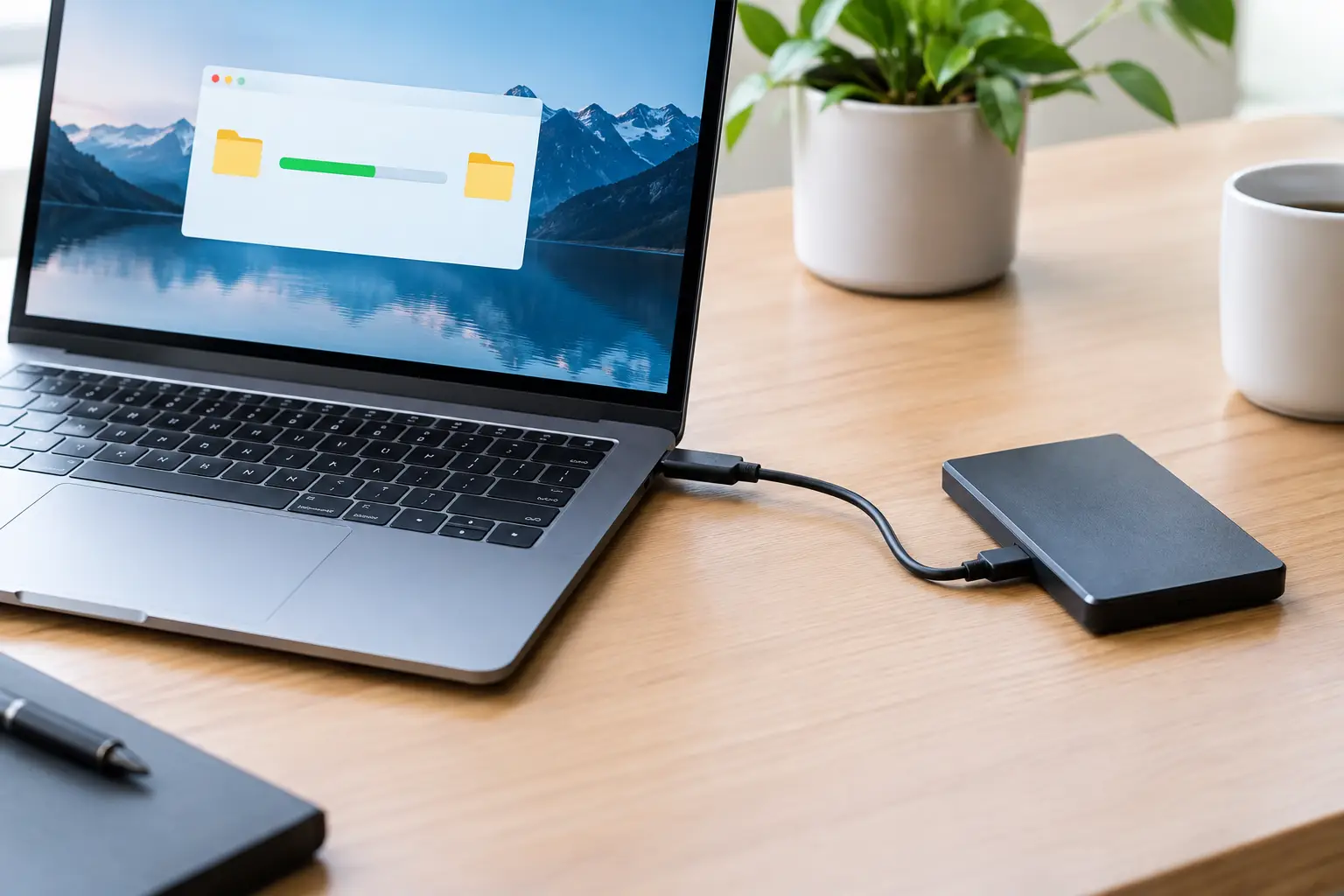
Replacing a computer should feel like an upgrade, not like starting your digital life from scratch. A professional guide to data transfer services helps you understand what can be moved, what needs to be set up again, and how to protect the files you cannot afford to lose. For home users and small businesses, getting this right means less downtime, less frustration and a much smoother first day on the new computer.
A guide to data transfer services for a new computer
Data transfer is the process of moving your important information from one device to another. This is commonly needed when buying a new desktop or laptop, replacing a failing hard drive, upgrading to Windows 11, or moving from an older computer that has become slow and unreliable.
The most obvious items are documents, photos, videos and downloads. However, a proper transfer can also include email data, internet favourites, contacts, desktop folders, accounting files, saved templates and other work documents. Depending on the software and the condition of the old computer, settings and some application data may be moved as well.
Not everything transfers in the same way. Programs usually need to be reinstalled on the new computer, particularly paid software such as Microsoft Office, MYOB, Adobe products or specialised business applications. Their licences may need to be checked before installation. A good technician will explain this clearly rather than promising that every program can simply be copied across.
Cloud storage can help, but it is not always the full answer. Services such as OneDrive, Google Drive and Dropbox are useful for keeping selected folders available across devices. They may not contain older files that were never backed up, locally stored emails or information saved in unusual folders. A transfer service checks what is actually on the old device before assuming it is already protected online.
When a transfer service is the better choice
A simple copy to an external drive can work for a tidy computer with only a few folders to move. The risk is that important files are often spread across the Desktop, Documents folder, email program, photo library and other locations. It is easy to overlook a folder until weeks later, when the old machine has already been wiped, sold or stopped working.
Professional help is especially worthwhile when the computer holds years of family photos, business records, client documents or email history. It is also useful if the old computer is running slowly, has warning messages, will not start reliably, or has an ageing hard drive. In these situations, the first priority is preserving the data rather than spending hours trying to fix the computer yourself.
For a small business, a transfer should be planned around continuity. Staff may need access to quotes, invoices, customer records and email with minimal interruption. The fastest method is not always the safest one, so it is worth allowing time for a proper check once the files arrive on the new device.
Prepare before the technician arrives
You do not need to be technical to prepare for a data transfer. Start by identifying the files and programs you use most often. Think about where your email is accessed, whether you have any passwords saved only on the old computer, and whether you use software that requires a licence key or login.
If possible, make a short note of the applications you want installed and the folders that matter most. This could include your photo collection, tax records, business documents or school files. It gives the technician a clear picture of what must be checked before the old device is put aside.
Keep login details available for your email account, cloud storage, Microsoft account and key software. You should enter passwords yourself wherever practical. A trustworthy service provider does not need permanent access to your private credentials, and you should never feel pressured to share banking passwords or other sensitive information.
What happens during a data transfer service
The job begins with an assessment of the old and new devices. The technician checks whether the old computer is healthy enough to read normally, how much data needs to be moved, and whether there are signs of hardware failure or malware. If the old drive is failing, the approach may need to change to reduce the chance of further data loss.
Next, the new computer is prepared. This can include Windows updates, security software, printer setup, internet connection, email configuration and installation of the programs you use. Setting up the computer before moving files helps avoid confusion later, particularly where cloud storage may start syncing folders automatically.
Your data is then copied using a suitable method, such as a direct cable connection, an external drive or a secure local network transfer. The right option depends on the amount of data, the speed and condition of each device, and whether the transfer is being completed at home or in an office.
Verification matters. A transfer is not complete just because folders appear on the new computer. Important documents should open correctly, photos should be visible, email should send and receive, and the files should be in a location that makes sense to you. For business customers, it is sensible to open key accounting and operational files before the job is signed off.
Special cases that need extra care
Email can be one of the trickiest parts of a computer changeover. Webmail accounts such as Gmail or Outlook.com are generally available once the account is signed in. Older email programs, however, may store messages locally on the computer. These archives may need to be exported or copied carefully, especially if they include years of customer correspondence.
Photos also deserve attention. Many people have duplicates, images spread across several folders, or pictures stored in software libraries rather than ordinary folders. Moving the files is only part of the job. It helps to make sure they remain easy to find and are included in an ongoing backup plan.
A computer affected by malware requires a different approach. Copying everything without checks can carry unwanted files to the replacement computer. Personal documents can often be recovered safely, but programs, unknown downloads and suspicious files should be treated with caution. This is one reason a clean setup is often better than cloning an entire old machine.
If the old computer will not turn on, data recovery may still be possible, but it depends on what has failed. A broken screen, faulty charger or damaged Windows installation is very different from a failed hard drive. Honest advice should include the likely chances of recovery and the cost before major work begins.
Time, cost and keeping the old device safe
The time required depends on the volume of data and the complexity of the setup. A straightforward home computer transfer may be completed in a few hours, while a business computer with large files, multiple email accounts and specialised software can take longer. Large photo or video collections may copy overnight even when the hands-on work is brief.
Before the old computer is recycled, donated or sold, confirm that everything you need is present on the replacement device and in your backup. Once you are satisfied, the old drive should be securely erased. Simply deleting files does not reliably remove personal information.
For local households and small businesses across Caboolture, Morayfield, Woodford, Wamuran and Moreton Bay, AllTec Computer Services can provide practical on-site help with computer setup, data transfers and follow-up checks. The aim is not just to move files, but to leave you with a computer that is ready to use and organised in a way that makes sense.
Keep one reliable backup after the transfer, and give yourself a week or two before disposing of the old device. That small window gives you time to notice the one folder, saved contact or old email archive you may still need.